
How do I integrate Custlo with Wishlist Hero?
Wishlist Hero is a powerful wishlist app that allows customers to save their favorite products for future purchases. By integrating Wishlist Hero with Custlo, customers can access their wishlist directly from the Customer Dashboard, providing a seamless shopping experience.
Follow the steps below to enable the integration.
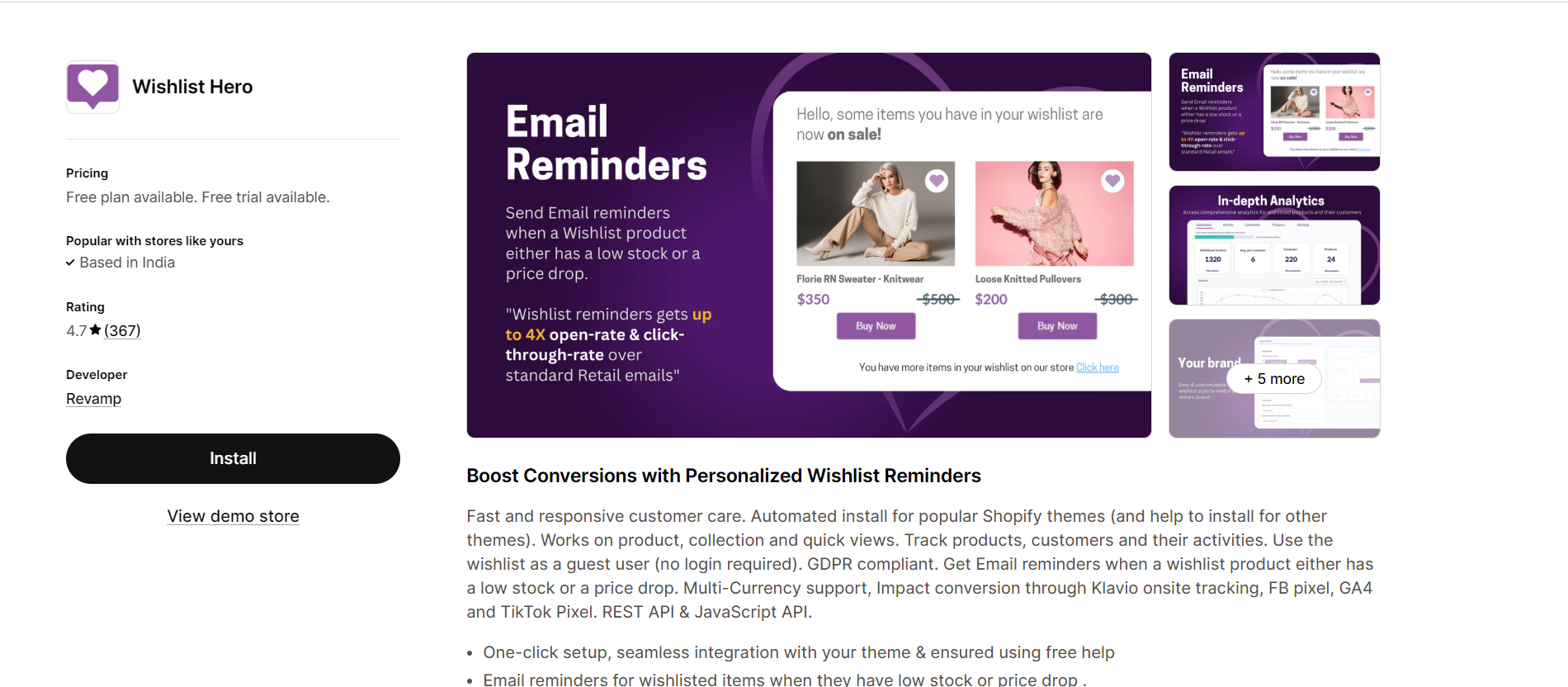
Step 1: Install the Wishlist Hero App
Install and configure the Wishlist Hero app from the Shopify App Store.
Step 2: Open the Custlo App
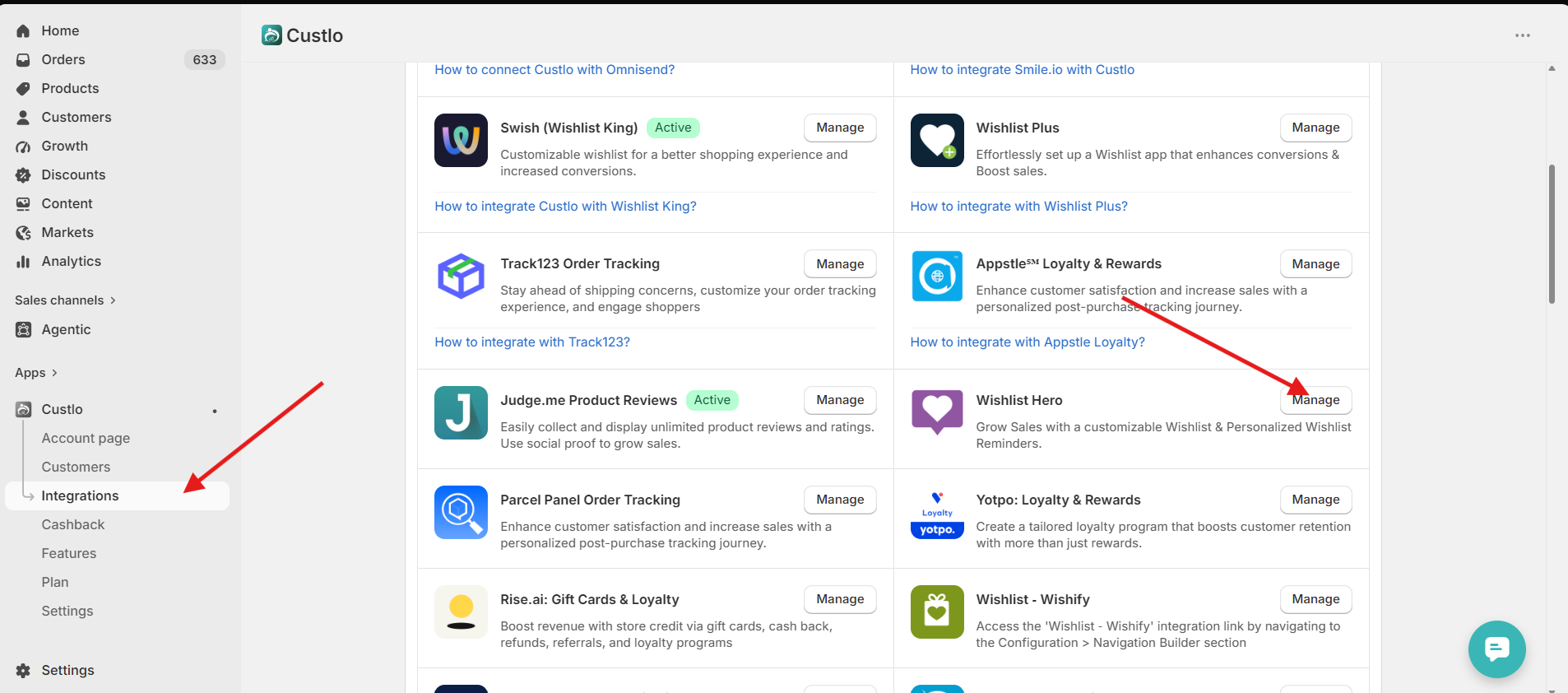
Go to Shopify Admin → Apps → Custlo – Customer Dashboard Pro.
From the left sidebar, click Integrations.
Locate Wishlist Hero and click Manage.
Step 3: Connect the Integration
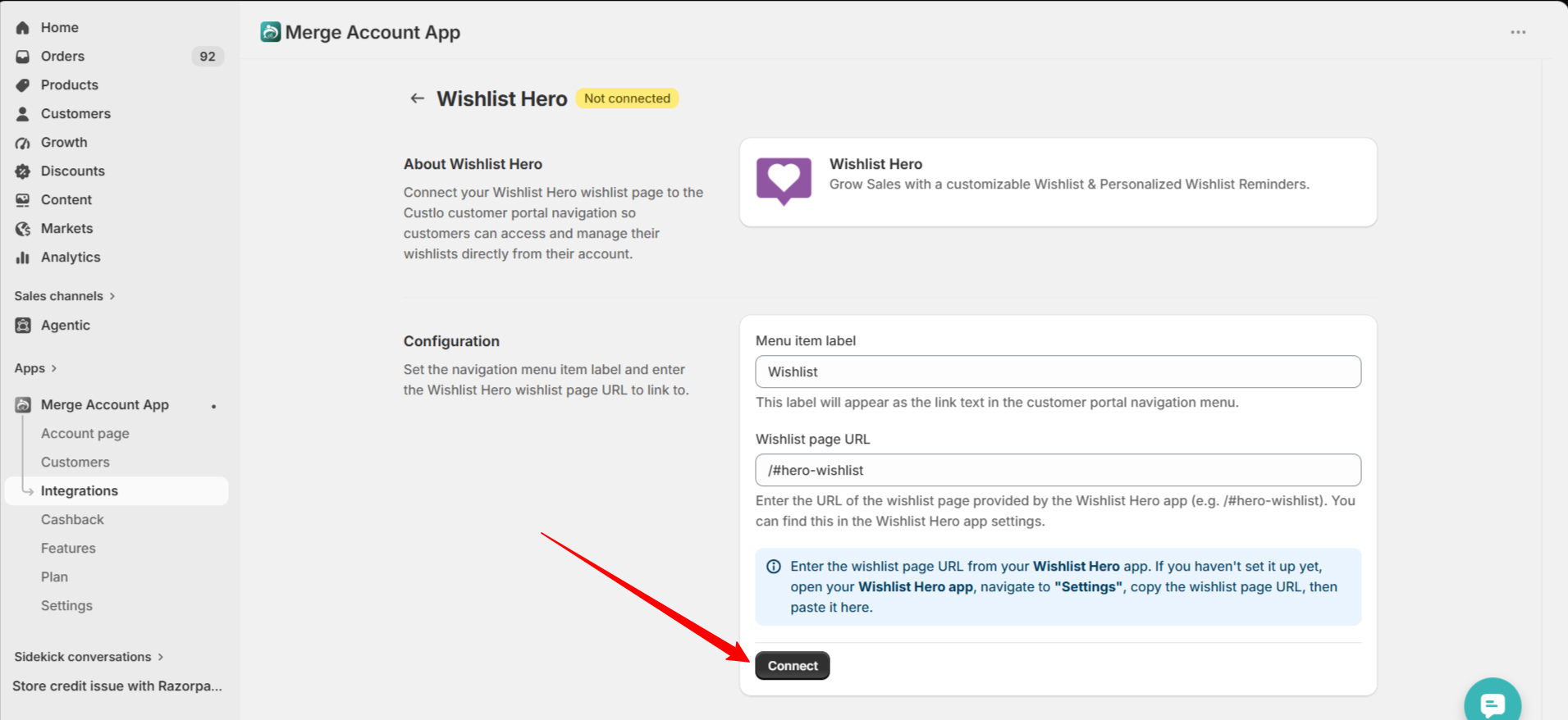
On the integration page, you'll see a Connect button.
Click Connect to enable the integration.
The integration uses the Wishlist Hero page URL (for example, /#hero-wishlist) automatically, so no additional configuration is required.
Step 4: Verify the Integration
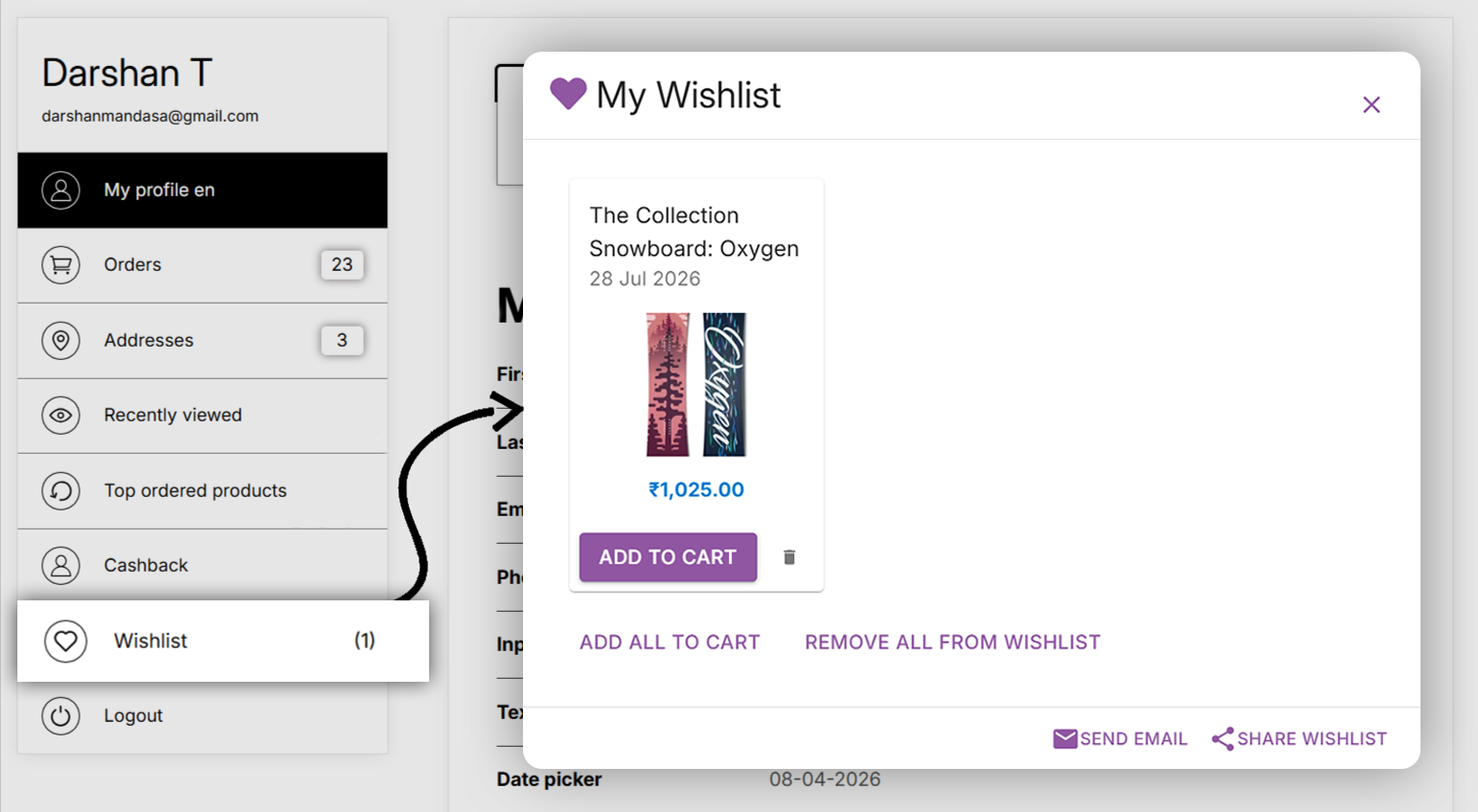
Once the connection is successful, open your storefront and log in to your customer account.
Navigate to the Wishlist section in the Customer Dashboard to access your Wishlist Hero page.
Frequently Asked Questions
Do I need to enter the Wishlist Hero URL manually?
No. Custlo automatically uses the Wishlist Hero page URL (such as /#hero-wishlist) when you click Connect, so no manual configuration is needed.
Why isn't the Wishlist Hero page opening?
Please make sure that:
The Wishlist Hero app is installed and configured.
The integration has been connected from Custlo → Integrations.
You are logged in as a customer.
The Custlo Customer Dashboard is active on your storefront.
Does Custlo manage wishlist items?
No. Custlo provides access to your Wishlist Hero page through the Customer Dashboard. All wishlist functionality, including adding, removing, and managing products, is handled by the Wishlist Hero app.