
How do I integrate Custlo with CWILL Order Tracking?
Custlo integrates with CWILL Order Tracking to display your order tracking experience within the Customer Dashboard.
Follow the steps below to enable the integration.
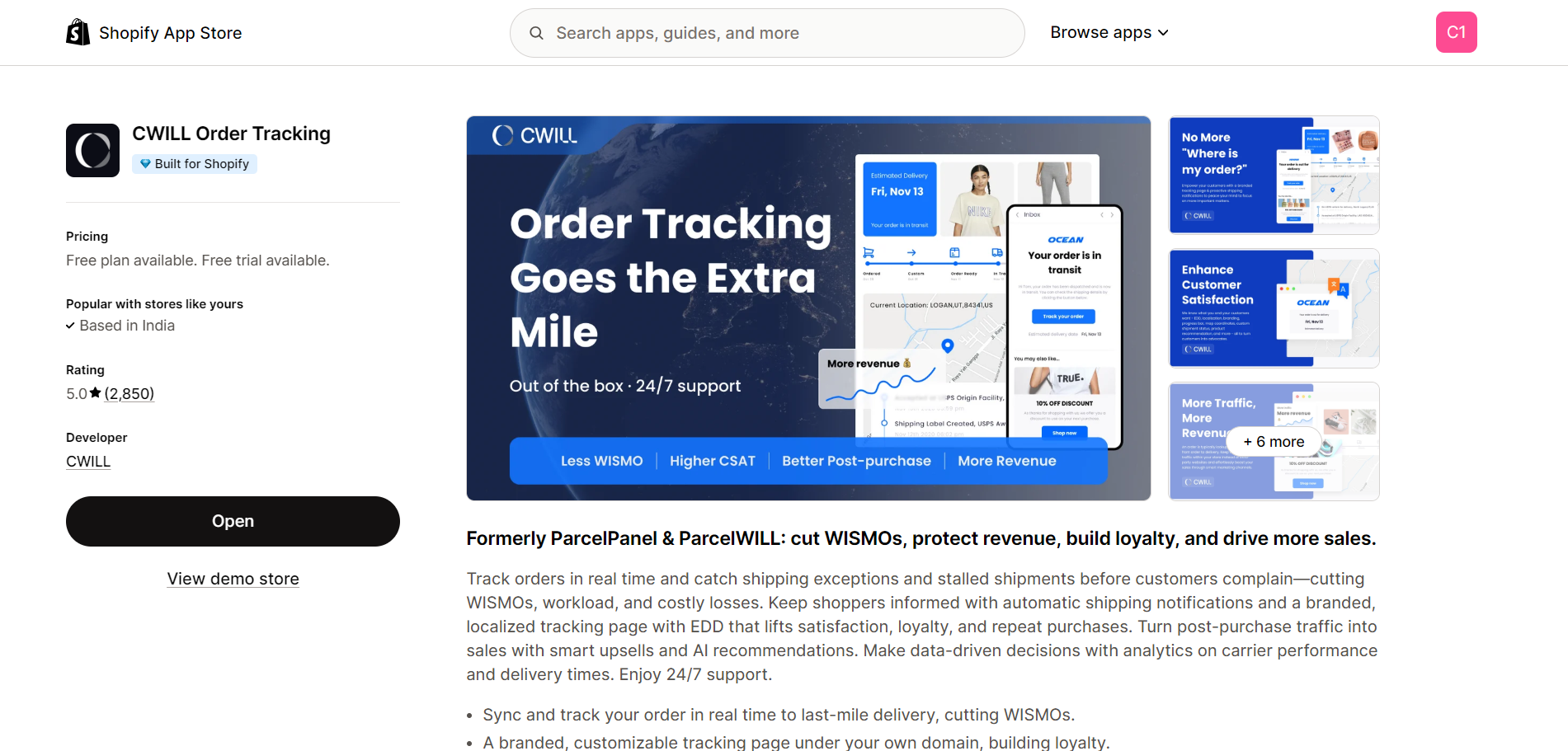
Step 1: Install the CWILL Order Tracking App
Install and configure the CWILL Order Tracking app from the Shopify App Store.
Step 2: Open the Custlo App
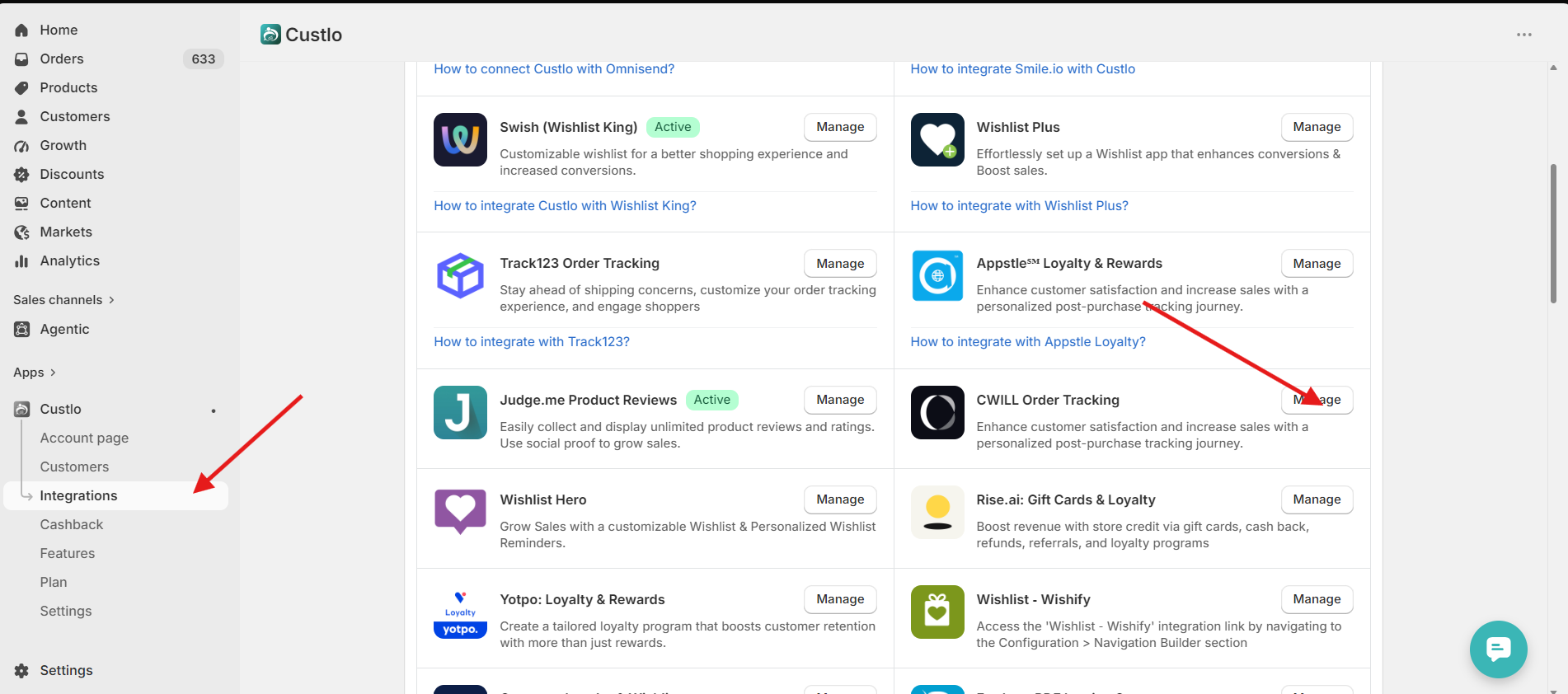
Go to Shopify Admin → Apps → Custlo – Customer Dashboard Pro.
From the left sidebar, click Integrations.
Locate CWILL Order Tracking and click Manage.
Step 3: Copy the Integration Script
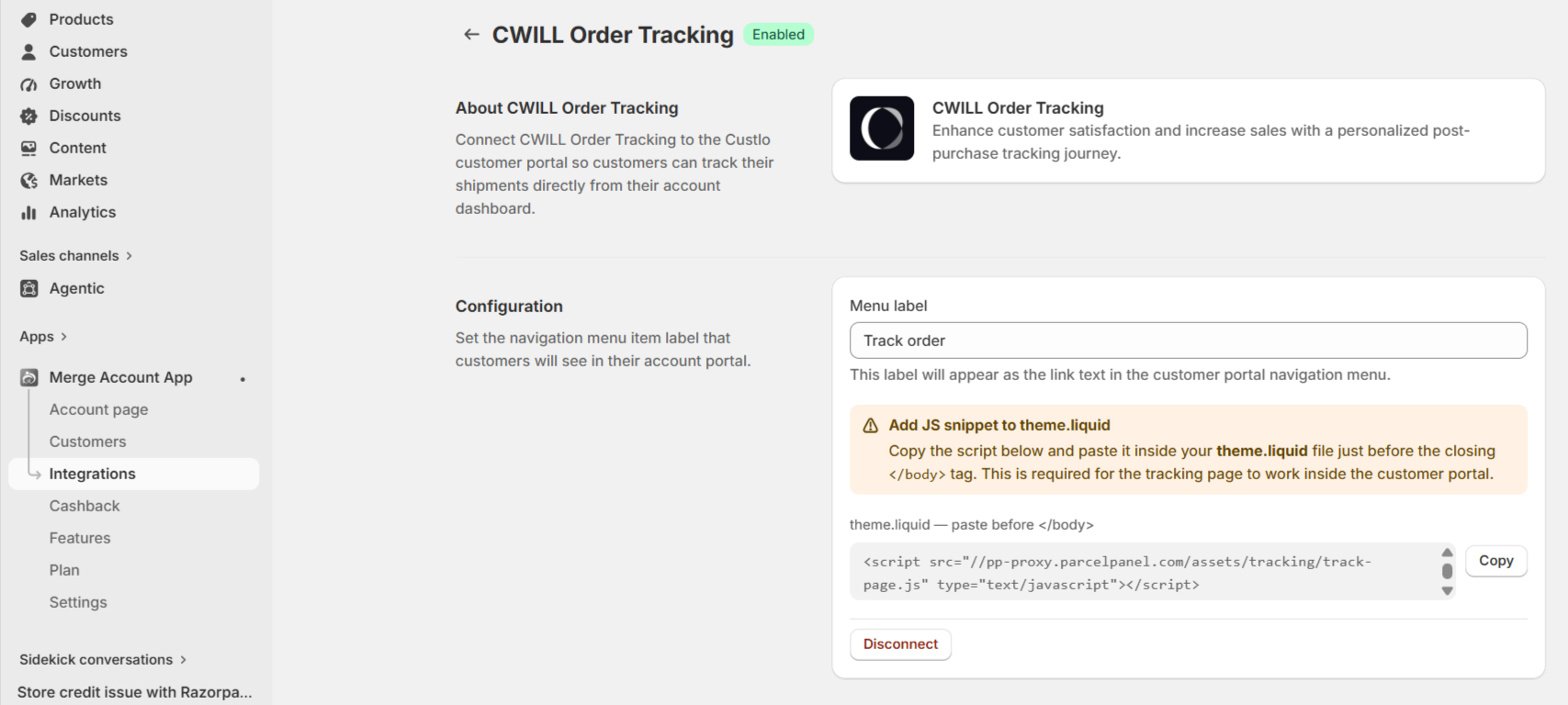
On the CWILL integration settings page in Custlo, you'll find a script under the Configuration section.
Copy the entire script provided.
Step 4: Add the Script to Your Theme
In your Shopify Admin, go to Online Store → Themes.
Click Edit Code for your active theme.
Open the theme layout file (usually
theme.liquid).Locate the closing
</body>tag.Paste the copied script immediately before the closing
</body>tag.Save the file.
Step 5: Verify the Integration
After saving the theme file, the integration will be activated automatically.
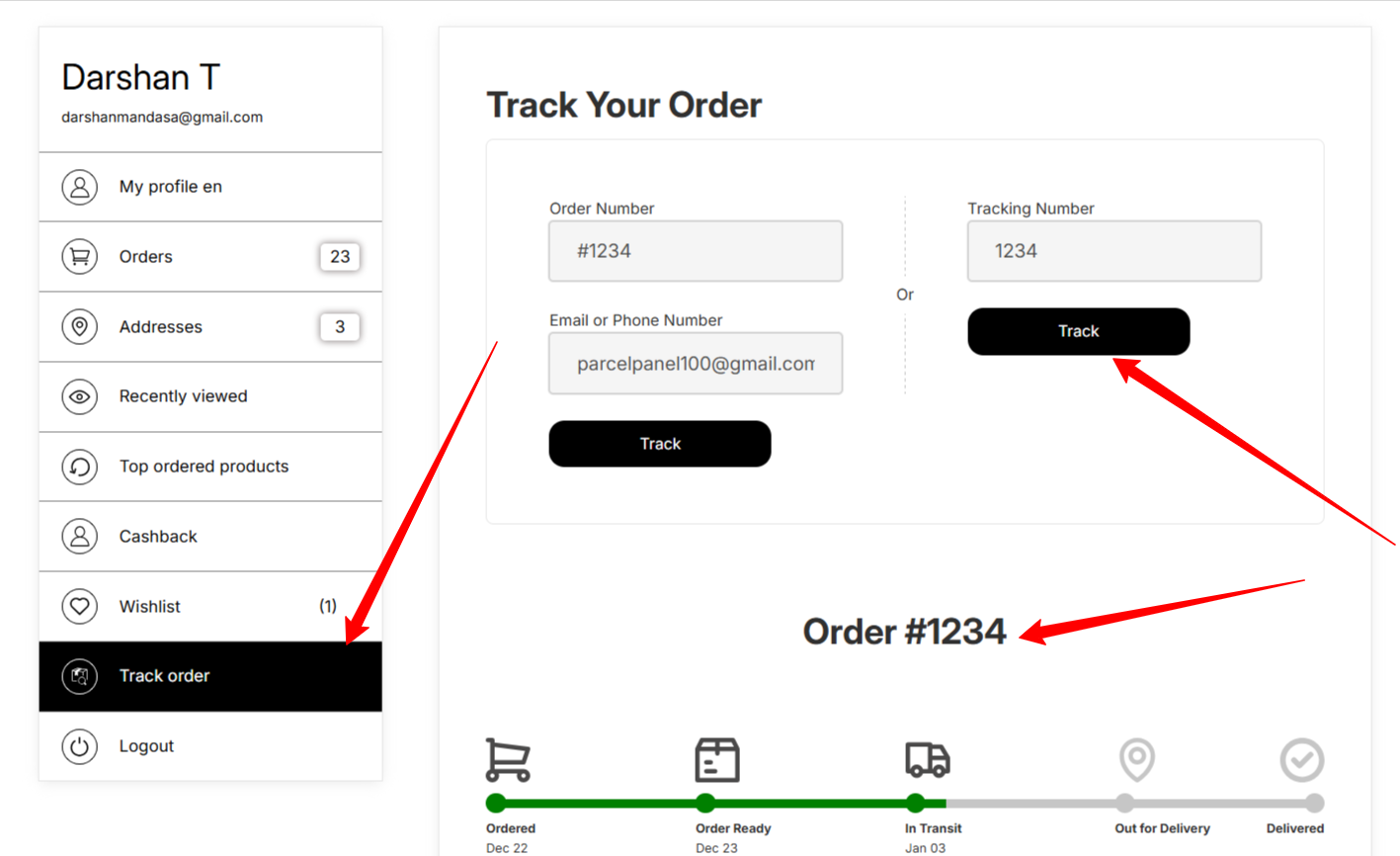
Open your storefront, log in to your customer account, and navigate to the Customer Dashboard to verify that the CWILL Order Tracking integration is working correctly.
Frequently Asked Questions
Where should I paste the script?
Paste the script immediately before the closing </body> tag in your active theme's theme.liquid file.
Do I need to modify the script?
No. Simply copy the script provided in the Custlo integration settings and paste it into your theme without making any changes.
The integration isn't working after adding the script. What should I do?
Please make sure that:
The CWILL Order Tracking app is installed.
The script has been copied completely.
The script has been pasted before the closing
</body>tag of your active theme.The theme changes have been saved.
If you've completed these steps and the integration still isn't working, please contact the Custlo Support Team, and we'll be happy to assist you.