
How do I integrate Custlo with Omnisend?
Custlo integrates with Omnisend to automatically sync your customers' personal details, making it easier to use customer data for email and SMS marketing.
Follow the steps below to connect your Omnisend account.
Step 1: Install the Omnisend App
Install and configure the Omnisend app from the Shopify App Store.
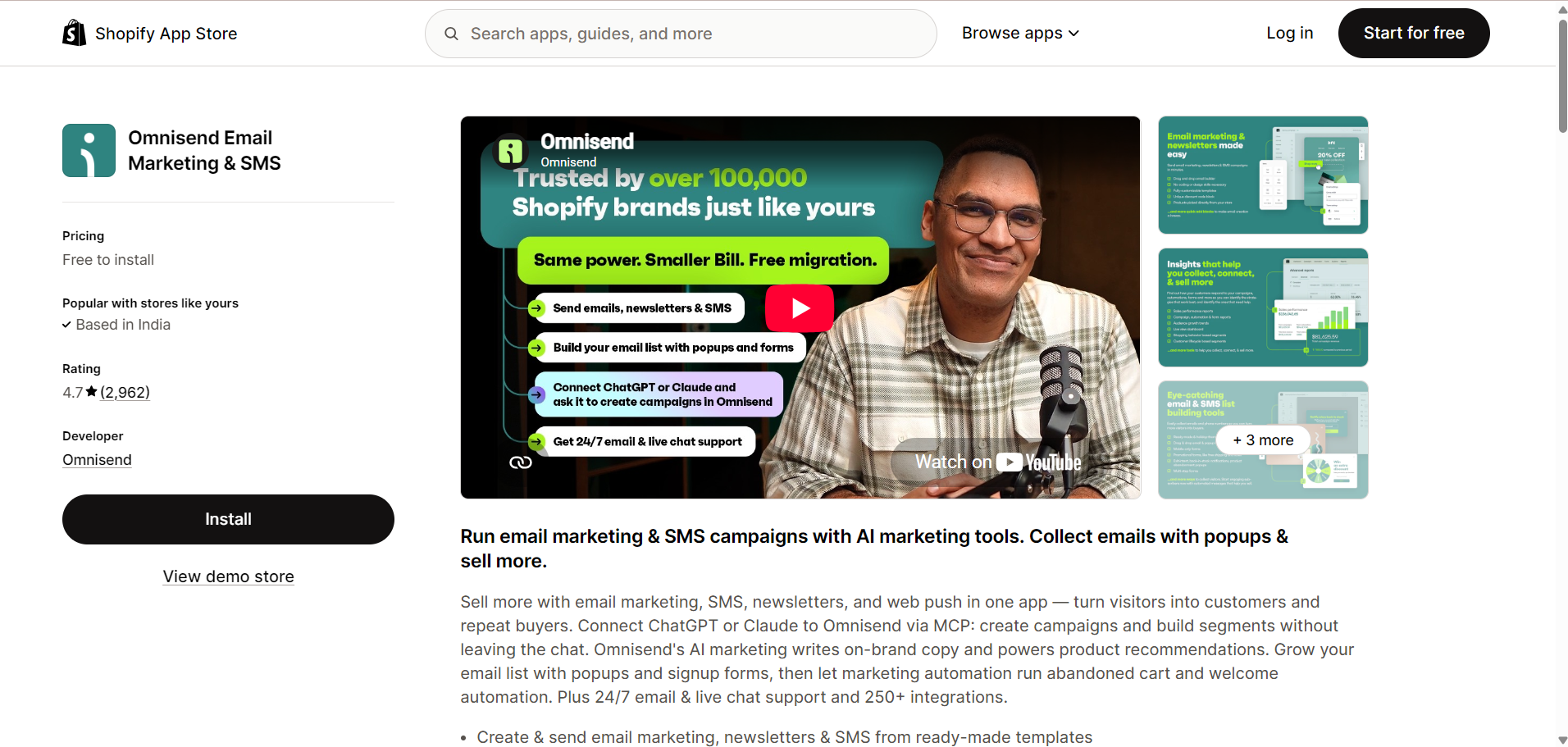
Step 2: Open the Custlo App
Go to Shopify Admin → Apps → Custlo – Customer Dashboard Pro.
From the left sidebar, click Integrations.
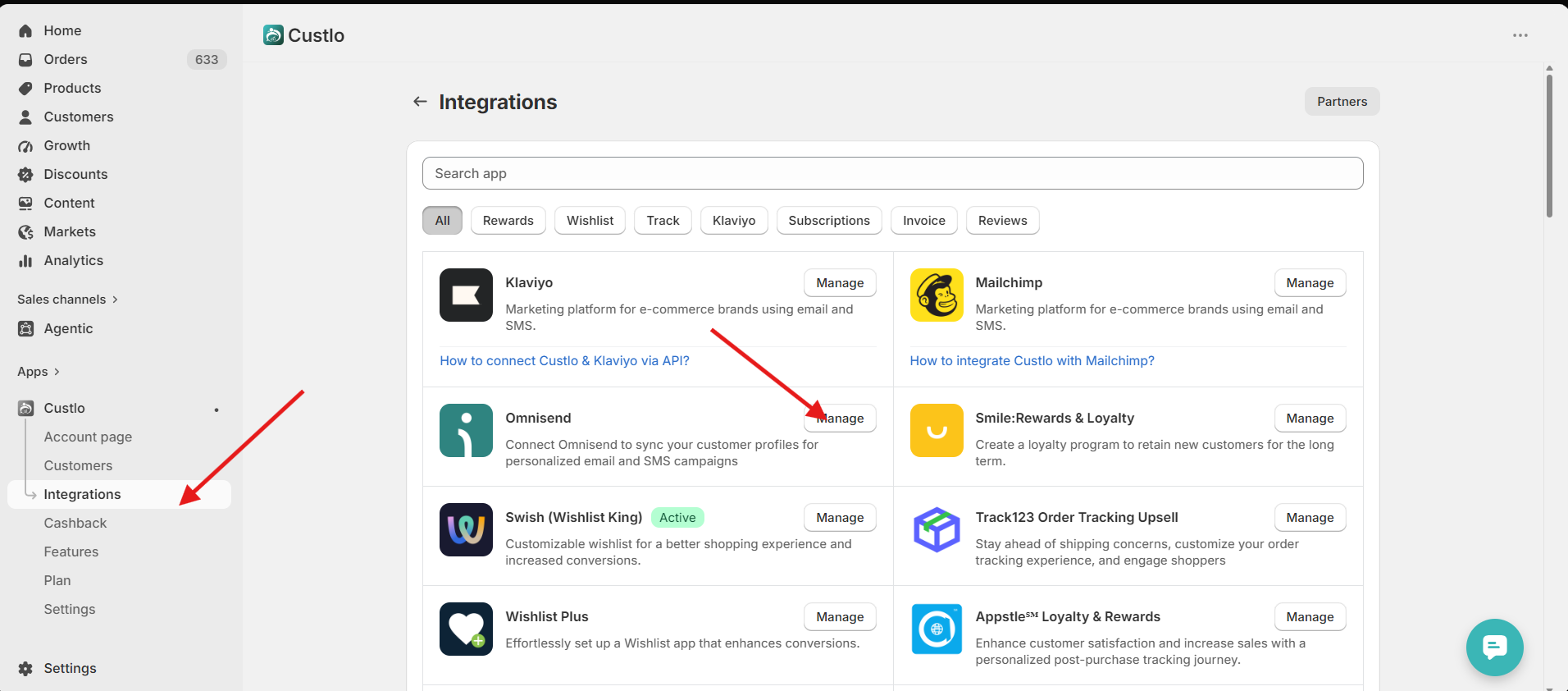
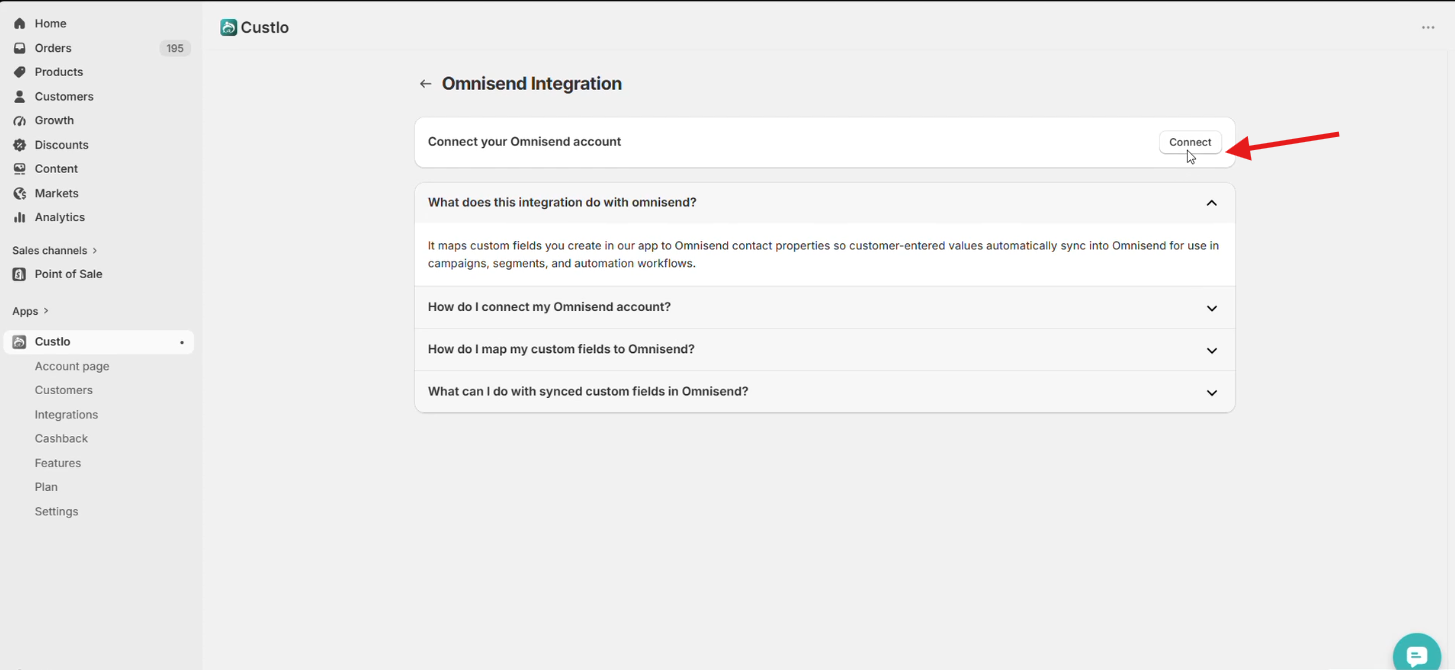
Step 3: Connect Omnisend
Locate Omnisend in the integrations list and click Connect.
You will be redirected to Omnisend to authorize the connection.
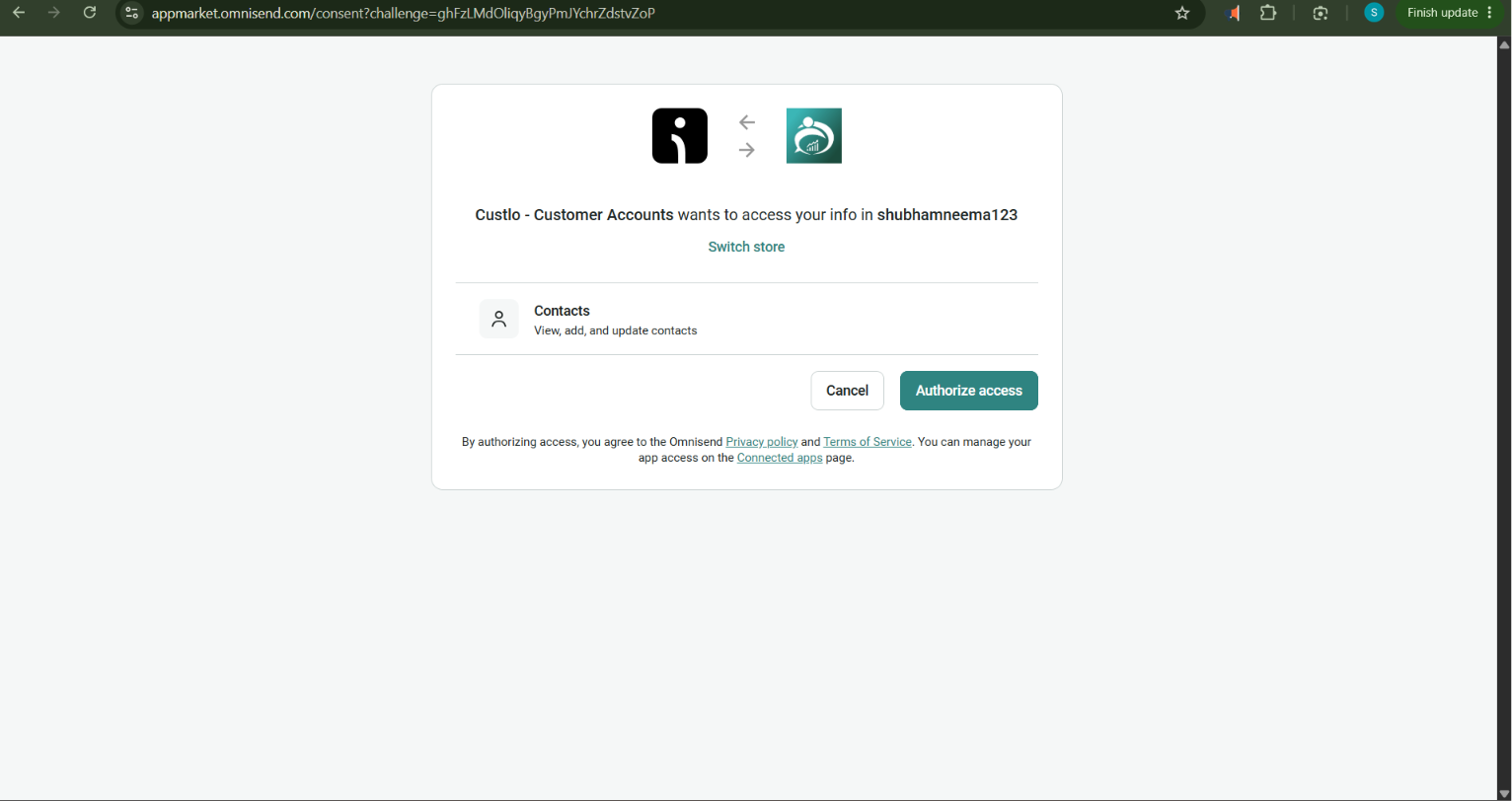
Step 4: Authorize Your Omnisend Account
If you are already logged in to your Omnisend account, simply approve the authorization request.
If you are not logged in, sign in to your Omnisend account and then authorize the connection.
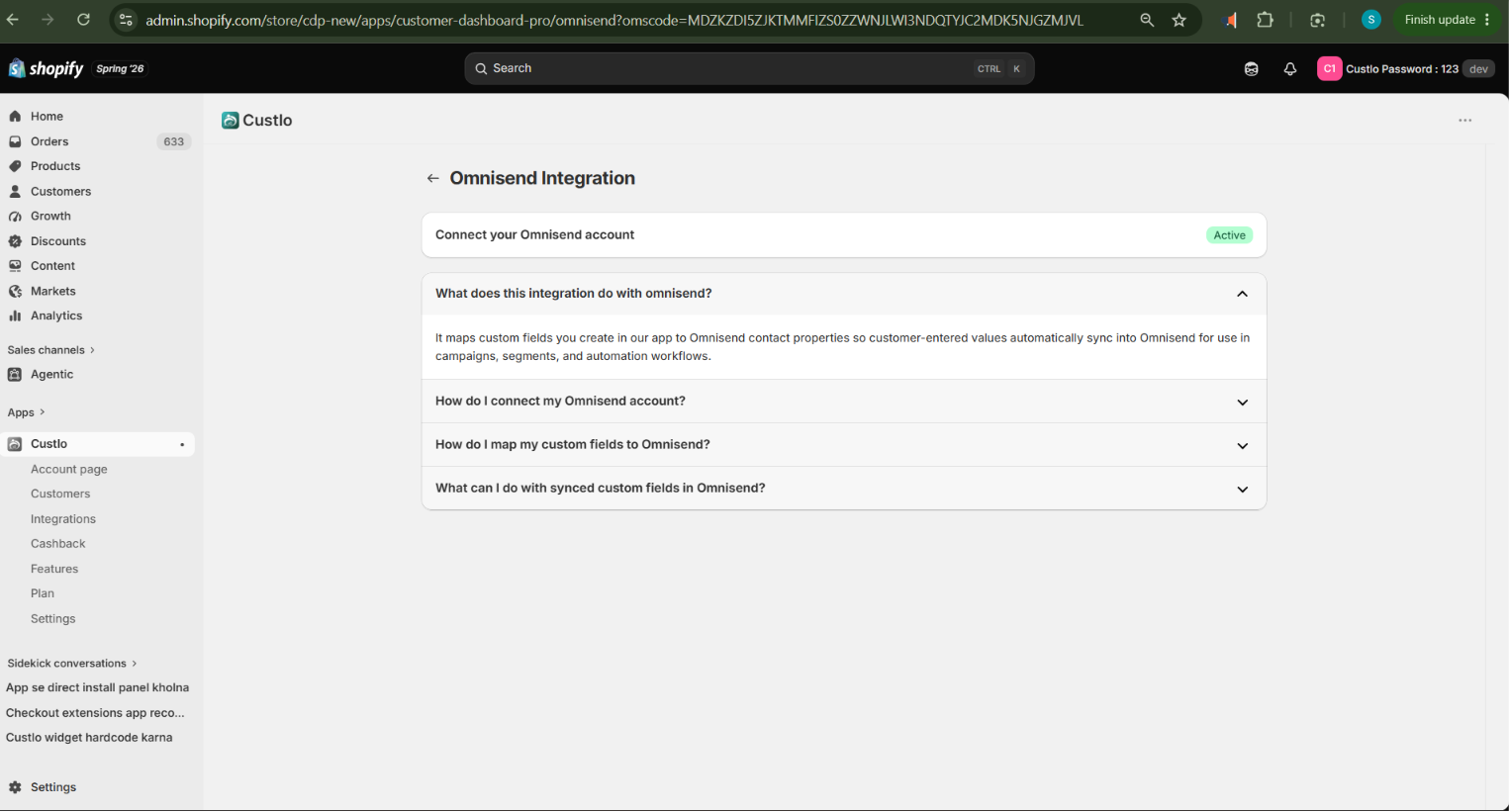
Once the authorization is complete, you will be redirected back to Custlo.
Step 5: Customer Data Sync
After the integration is successfully connected, your customers' personal details will automatically sync with Omnisend.
Frequently Asked Questions
What customer information is synced?
Custlo syncs the customer's personal details with Omnisend after the integration is connected.
Why isn't my customer data syncing?
If your customer information is not syncing after successfully connecting Omnisend, please contact the Custlo Support Team. We'll be happy to help you troubleshoot the issue.
Do I need to reconnect the integration?
No. Once the authorization is completed successfully, the integration remains connected unless it is manually disconnected or the authorization is revoked.